Open the iMessage Screenshot Generator, enter a fictional contact and conversation, choose sent or received for each message, select blue iMessage or green text-message bubbles, add optional Tapbacks and receipts, then export the phone preview as PNG.
Blue vs green bubbles: choose the right one
Bubble color is the first detail most viewers notice. Apple explains that messages sent with iMessage appear in blue, while RCS and SMS/MMS messages appear in green. Its current Messages guide also notes that iMessage supports typing indicators, delivery and read receipts, and Tapbacks. See Apple’s iMessage, RCS, and SMS/MMS comparison.
| Outgoing color | Use it when the mockup represents | Typical visual cue |
|---|---|---|
| Blue | An iMessage conversation between supported Apple devices | Blue sent bubbles; gray received bubbles |
| Green | A text sent through RCS or SMS/MMS rather than iMessage | Green sent bubbles; gray received bubbles |
The generator labels its green-bubble switch “SMS” for a compact editing control. In the finished article or presentation, describe the screenshot according to the actual scenario rather than assuming every green bubble means the other person uses Android.
Build the iMessage-style screenshot
1. Start with the iMessage template
Open the iMessage editor. The phone frame, contact header, bubble alignment, input field, and date line are already in place.
2. Replace the contact details
Use a clearly fictional name and avatar. Keep the header short: a long display name competes with the video icon and makes the screen feel crowded.
3. Write one beat per bubble
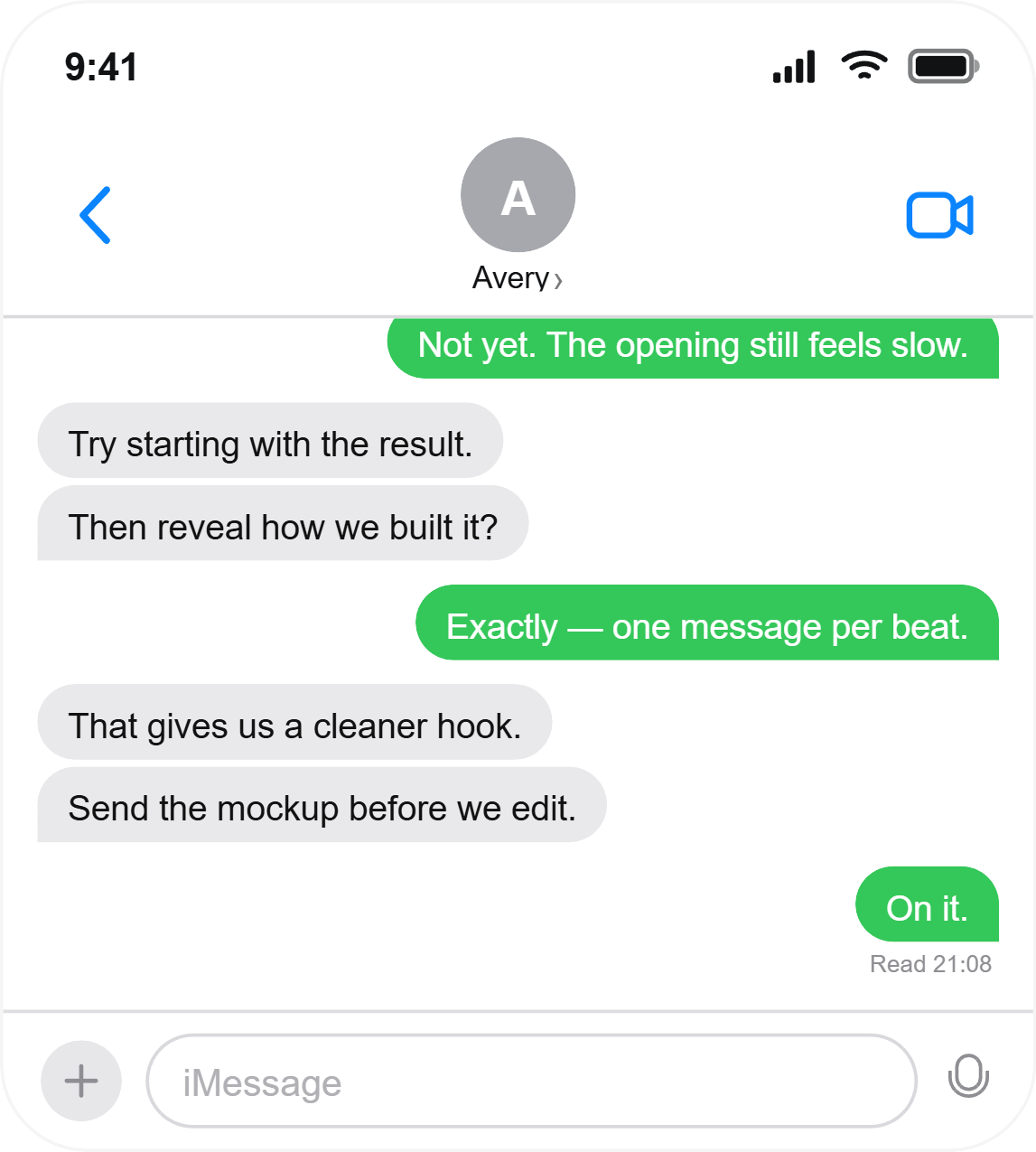
A screenshot is scanned rather than read line by line. Break the exchange into short turns: setup, question, correction, decision, and final action. Two consecutive bubbles from the same sender can create pace without forcing an artificial reply.
4. Pick blue or green outgoing bubbles
Leave the standard iMessage style on for blue bubbles. Turn on the green-bubble option when the scene calls for a text message rather than iMessage. Do this before finalizing line breaks because the color switch can make contrast issues more noticeable.
5. Add optional message states
Use “Delivered” or “Read” below the last outgoing message, add a Tapback only when it changes the interpretation, and show the typing bubble when the unfinished reply is part of the story. Dark mode is useful for nighttime scenes, but it should support the narrative rather than act as decoration.
6. Check the frame and export
Scan from the contact name down to the input bar. Make sure the first line is visible, the final receipt is not clipped, and the bubble widths look balanced. Then select the export quality and download the PNG.
Four details that make a mockup feel wrong
- Wrong color for the scene. Use blue for iMessage and green for RCS or SMS/MMS.
- Every bubble is the same length. Natural conversations change pace.
- Too many effects. A Tapback, typing indicator, reply preview, and receipt on every message becomes visual noise.
- Private data in a tutorial. Replace real names, photos, numbers, and message text before sharing the image.
Use generated conversations for design, teaching, demonstrations, and clearly fictional storytelling. Never attribute invented words to a real person or submit a mockup as a record of an actual exchange.
Which format should you use?
Choose iMessage when the blue/green bubble distinction is part of the visual language. Choose a WhatsApp chat screenshot when receipt ticks, a WhatsApp-style header, or the platform’s green interface better fits the audience.
Frequently asked questions
Can I make green text-message bubbles?
Yes. The appearance panel includes a green-bubble switch for outgoing messages.
Can I show Delivered or Read?
Yes. Choose Off, Delivered, or Read for the final sent message.
Can I add Tapback reactions?
Yes. Individual messages can display a heart, thumbs up, thumbs down, laugh, emphasis, or question reaction.
Does the tool send an iMessage?
No. It only renders a fictional visual mockup in your browser.