Open the WhatsApp Chat Generator, replace the fictional participant and message text, choose sent or received for each bubble, set timestamps and receipt states, preview the complete thread, then download a PNG.
What a good WhatsApp mockup needs
A WhatsApp chat screenshot is more than green and white bubbles. The contact header, message order, time stamps, spacing, replies, reactions, and delivery marks all contribute to the visual rhythm. A generic image editor can reproduce those pieces, but a dedicated mockup keeps them aligned while you focus on the conversation.
Use fictional names and copy. A mockup is useful for a storyboard, tutorial, pitch, product demo, meme, or short-form video scene; it is not proof that a real exchange happened.
Create the screenshot in six steps
1. Open the WhatsApp template
Start from the WhatsApp editor. The platform style is preselected, so the live phone preview already uses a WhatsApp-style header, conversation area, input bar, and message receipts.
2. Set the fictional participants
Replace the default contact name and status. You can add an avatar, but an initial-based placeholder is often cleaner for tutorials and internal reviews. If the story needs urgency, use a short status such as “online” or turn on the typing state in the header.
3. Write the conversation before decorating it
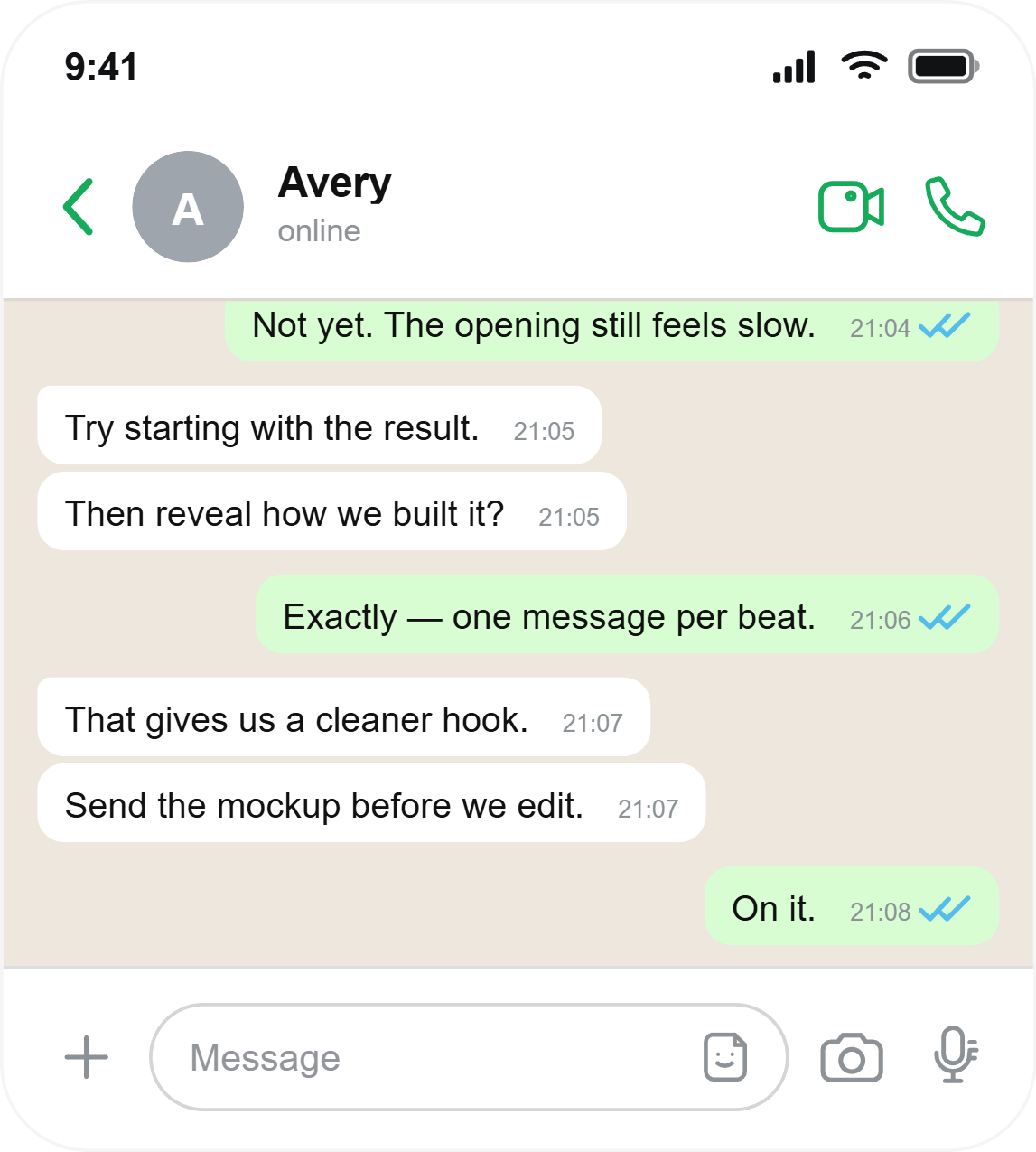
Give every bubble one job. A useful eight-message sequence might introduce the problem, challenge the first idea, offer a correction, confirm the next action, and end with a short reply. Long paragraphs make a chat screenshot feel like a document pasted into a phone.
4. Assign direction and timing
Mark each message as sent or received and use plausible times. Consecutive bubbles from the same person should feel like one thought broken into beats. A new speaker creates a clearer pause, so use that change to signal a turn in the story.
5. Add only the details the scene needs
Use a reply preview when the response would otherwise be ambiguous. Add one reaction when it changes the meaning. For sent messages, choose a sent, delivered, or read state. These controls are useful visual cues, but stacking all of them on every bubble creates noise.
6. Preview and export
Check the entire phone view for awkward line breaks, hidden first messages, and crowded metadata. Adjust the chat height if needed, choose HD, 2K, or 4K, and download the result as a PNG.
Make the chat look natural and stay readable
- Keep bubbles short. One sentence—or one beat—per bubble is easier to scan.
- Vary the reply length. A mix of short and medium messages feels more conversational.
- Use realistic time gaps. A response every exact five minutes looks staged.
- Protect the safe area. Leave room around the first and last message if the image will be cropped for a vertical video.
- Export once. Avoid re-screenshotting the downloaded PNG, which can soften text and icons.
Do not impersonate a real person, fabricate evidence, or present fictional messages as a genuine conversation. Label staged content when the surrounding context could confuse viewers.
Where this workflow is useful
A WhatsApp screenshot mockup can demonstrate a support exchange in a product deck, visualize dialogue for a video editor, show an onboarding flow before development, or replace private chat data in documentation. If your concept depends on Apple Messages conventions instead, use the iMessage screenshot guide.
Frequently asked questions
Can I create a WhatsApp chat screenshot without installing an app?
Yes. The editor runs in the browser and the preview updates as you type.
Can I change the two blue ticks?
Yes. Sent messages can use sent, delivered, or read receipt states.
Can I add replies and emoji reactions?
Yes. Each message can include a reply preview and an optional reaction.
Does the generator connect to WhatsApp?
No. It creates a visual mockup only and does not sign in, send messages, or access a real account.